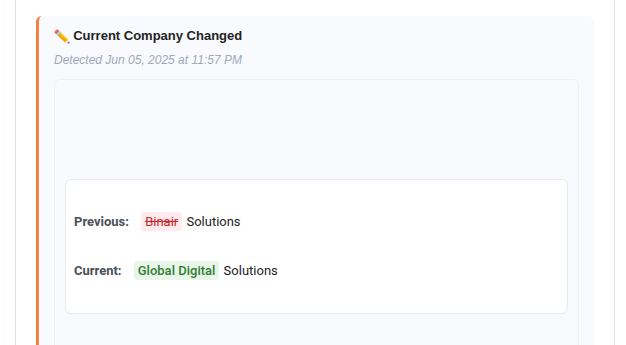
Why Use flux.report?
flux.report automatically tracks LinkedIn profile changes so you can:
- Know when contacts change jobs or get promoted
- Reach out at the perfect moment
- Never manually check profiles again
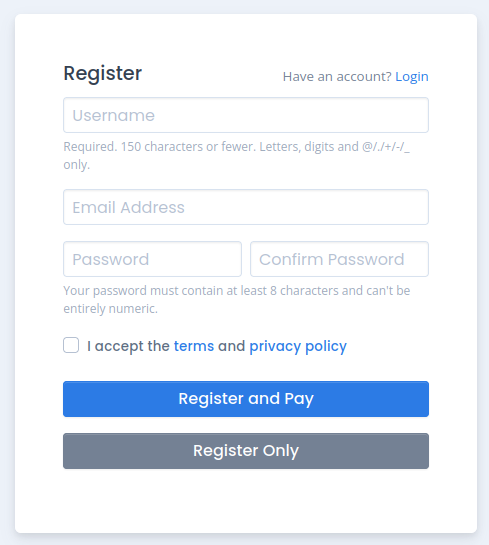
Step 1: Register for Your Account
Sign up with your email, name, and password. Choose "Register and Pay" to get started immediately.
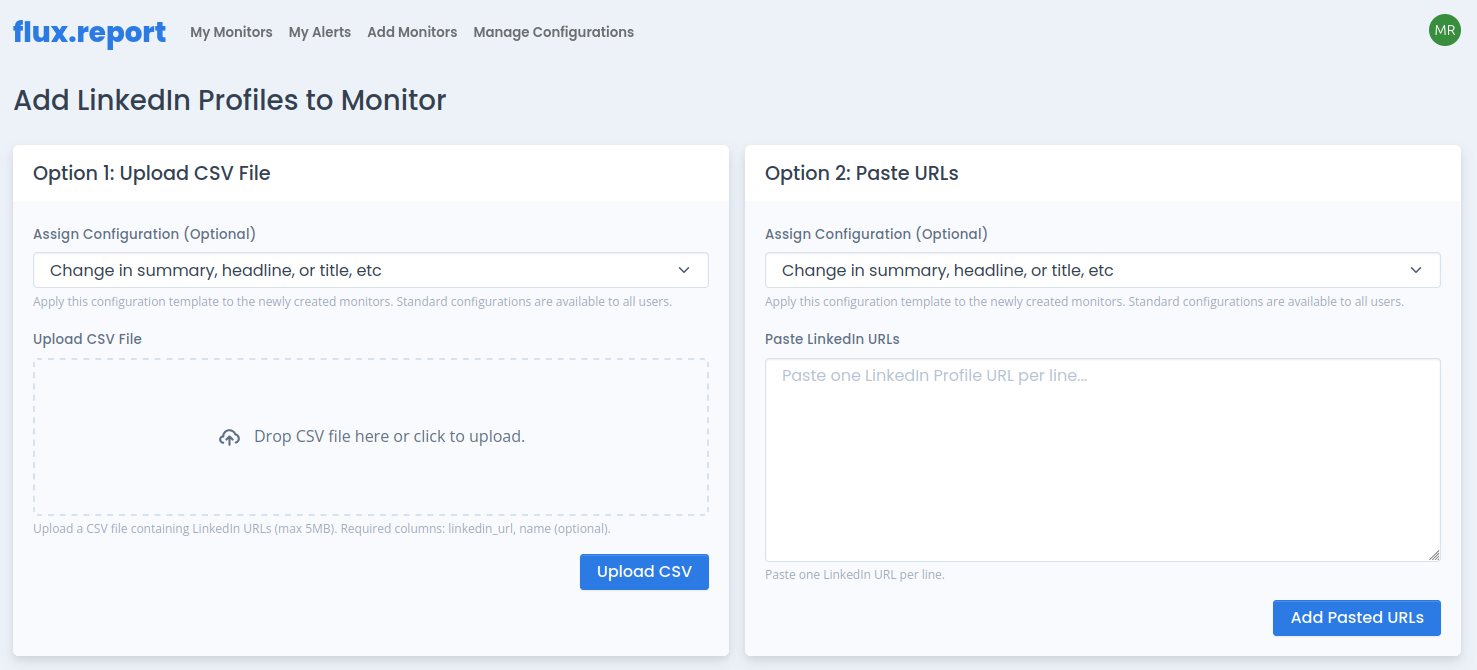
Step 2: Upload LinkedIn URLs to Monitor
Add LinkedIn profiles to monitor using either method:
- CSV Upload: Drag and drop a CSV file with LinkedIn URLs
- Paste URLs: Paste LinkedIn URLs directly (one per line)
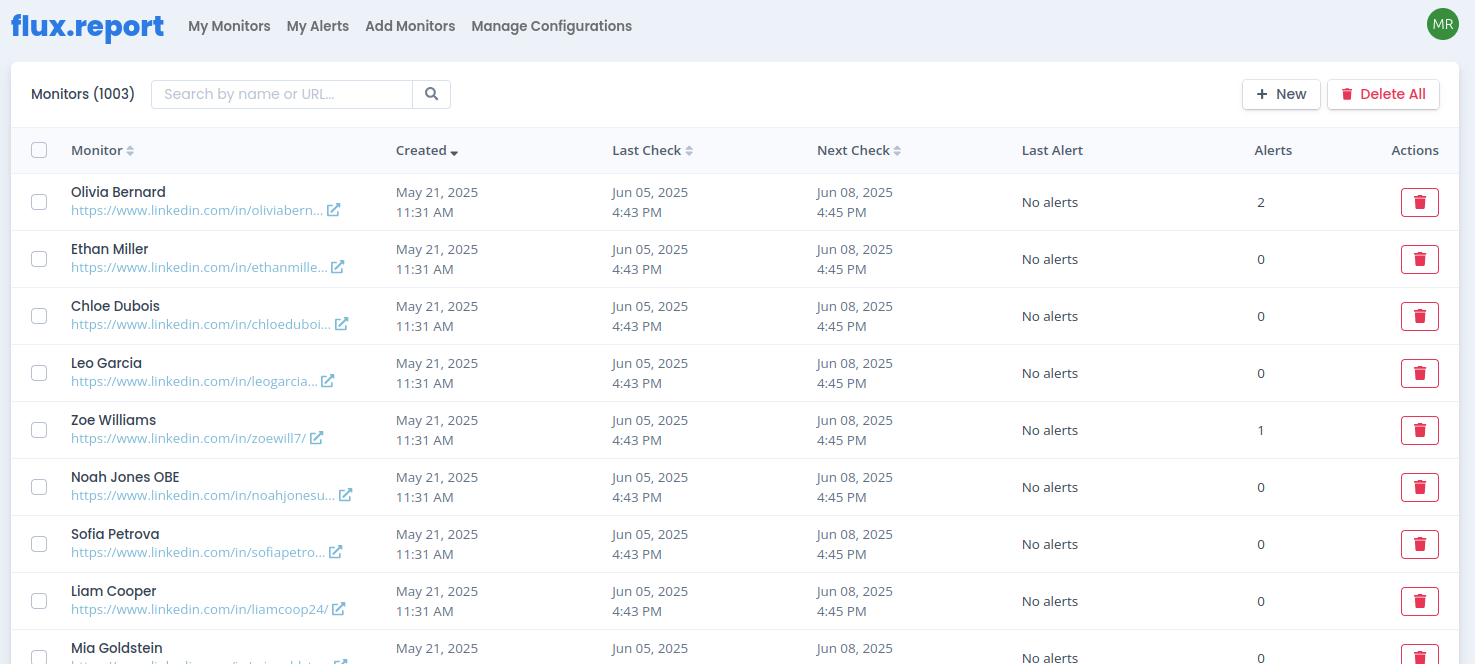
Step 3: Review Your Monitors Dashboard
Your dashboard shows all monitored profiles with key information:
- Monitor: Contact name and LinkedIn URL
- Created: When you started monitoring
- Last Check: Most recent profile check
- Next Check: Scheduled check time
- Last Alert: Most recent change detected
- Alerts: Total changes found
Use search to find contacts quickly, sort columns to organize your view, and add new monitors anytime.
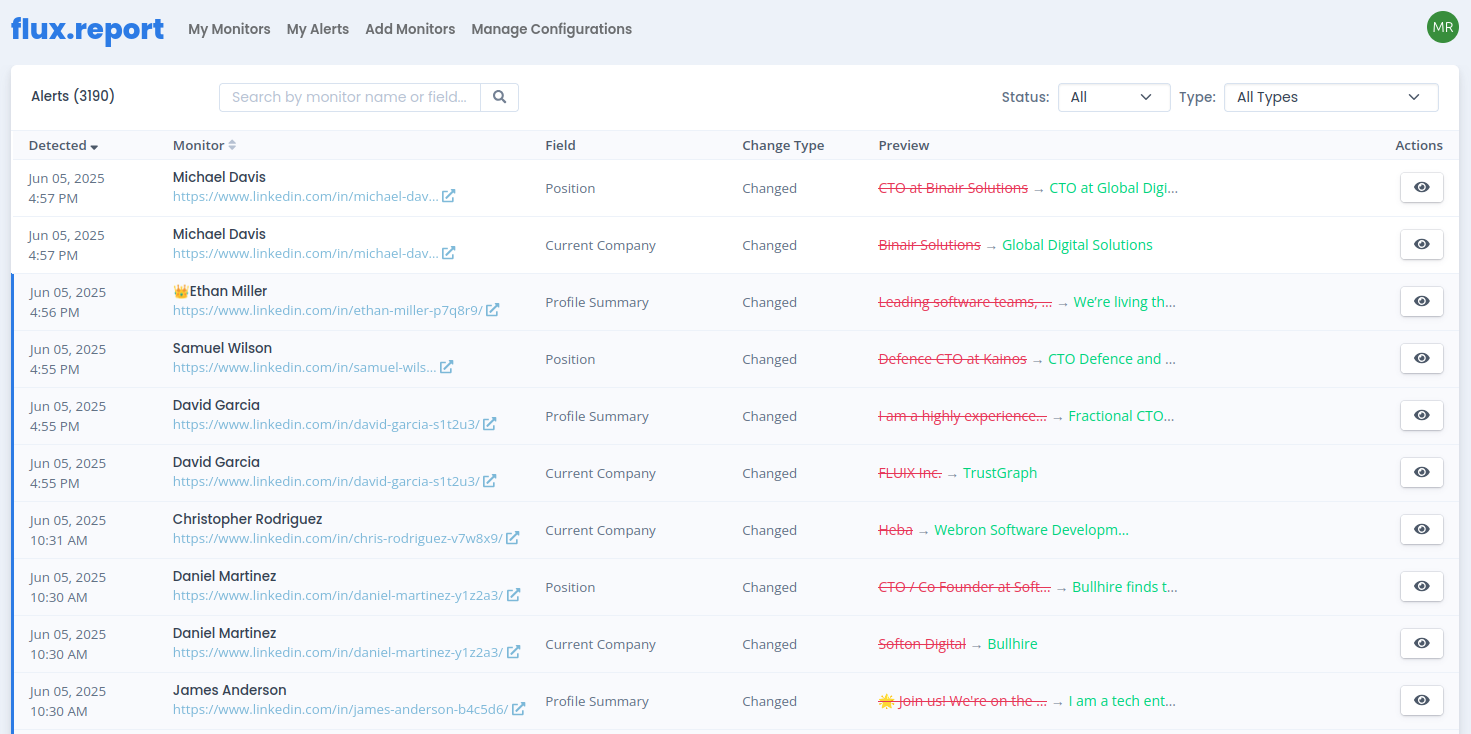
Step 4: Track and Act on Alerts
See all detected profile changes in one place:
- Detected: When the change was found
- Monitor: Which contact changed
- Field: What changed (Position, Company, etc.)
- Change Type: Changed, Added, Removed, Populated, or Cleared
- Preview: Old value → New value
Common Use Cases:
- Congratulate contacts on new jobs
- Identify when champions leave accounts
- Spot promotions and new decision-makers
- Track moves to target companies
Email Notifications
Get instant email alerts when changes are detected. Each email includes the contact name, what changed, and a direct link to their LinkedIn profile.